 TalkWorld
Getting started
You can play TalkWorld on Windows, on Linux or in a browser. The Windows download opens the game in its own window, with the original 1996 program still included if you prefer it. The browser version is the same game in a tab, on a computer, a phone or a tablet. Everyone connects to the same server, so you all end up in the same town.
On Windows 10 or 11
- Download the installer. Click Download TalkWorld Setup. It's about 6 MB.
- Open it. Find TalkWorld Setup.exe in your Downloads folder, or click it in your browser's download list.
- Click Install. It installs into your own user folder, so you don't need admin rights. It takes a few seconds.
- Play. The launcher opens when the install finishes. Next time, use the TalkWorld shortcut on your Desktop or in the Start menu.
Seeing a warning? The installer is new and isn't code-signed yet, so Windows and Chrome don't recognise it. In Chrome, open the downloads list and choose Keep. When the blue "Windows protected your PC" box appears, click More info, then Run anyway. The warnings fade as more people download it.
Without installing
Prefer not to install anything? Download the portable zip, right-click it, choose Extract All, and open Play TalkWorld.exe from the folder you extracted. Keep the files together in that folder.
In a browser
Go to play.talkworld.org. The launcher appears in the page. Pick a room, choose whether to play as a guest or with your registered name, and click Join Room. It works in current versions of Chrome, Edge, Firefox and Safari. When you first use voice, your browser asks for permission to use the microphone.
On a phone or tablet
Open play.talkworld.org in Safari or Chrome. The page switches to a phone layout with a touch pad. See Phones and tablets for the controls.
On a Mac or a Chromebook
Use the browser version at play.talkworld.org. There's nothing to install.
On Linux
The browser version works on Linux too. To play the original Windows game instead, there are two downloads. Both run it under Wine and set Wine up for you, including the setting that keeps the game at its original speed.
Debian, Ubuntu, Mint and similar
- Download talkworld.deb.
- In a terminal, in your Downloads folder, run
sudo apt install ./talkworld.deb. This installs Wine too if you don't have it. - Open TalkWorld from your applications menu, or type
talkworldin a terminal.
Any other Linux
- Install Wine with your package manager, for example
sudo dnf install wineon Fedora orsudo pacman -S wineon Arch. - Download TalkWorld-linux.tar.gz and run
tar xzf TalkWorld-linux.tar.gz. - Run
TalkWorld/talkworldto play. RunTalkWorld/talkworld --install-menuonce to add it to your applications menu.
The first start copies the game to ~/.local/share/talkworld and sets up a separate Wine profile there, which can take a minute. The launcher keeps itself up to date after that. If Wine says it can't run 32-bit programs, add 32-bit support: on Debian or Ubuntu, sudo dpkg --add-architecture i386, then sudo apt update and sudo apt install wine32.
The launcher
The launcher is the first thing you see on Windows and in the browser. It shows who's online and gets you into the right room.

Rooms
- Server picks which server to use. The official one is selected for you. Add... lets you type in the address of another TalkWorld server, and Remove deletes one you added. Servers you add are only saved on your computer.
- The room list shows every room on that server and how many people are in it. Main (public town) is where everyone starts. A lock means the room needs a password.
- Who is in this room lists the names of the people in the room you've selected.
- Join Room starts the game in the selected room.
- Create Room... makes a new private room. You choose a name and, if you like, a password. See Private rooms.
- Refresh updates the room list.
Your name
- Play as a guest gives you a temporary name like guest3. No account needed.
- Use my registered name lets you sign in with a name you've registered. Tick Remember my password to stay signed in. On Windows, the saved password is encrypted with your Windows account.
- Register a new name... claims a name so nobody else can use it. You also get a mailbox and a description that other players can read.
Game window
On Windows, the game opens in its own window with the wide view, smooth 60 fps movement and the same menus as the browser version. Drag the edges to resize it, or press F11 to fill the screen. In the 1996 classic layout the window takes the shape of the original one and keeps it as you resize, so there are no black bars; maximise and full screen are off in that layout. To play in the original 1996 game instead, pick Play in: The original 1996 game (talkworld.exe) in the launcher, then Join as usual. Rooms with a custom map can't open in the 1996 game; the launcher tells you so and offers the new window or the main town instead. On Linux the original window is always used.
Updates
On Windows, the launcher checks for a new version when it starts. If there is one, an Update button appears at the bottom. Click it and the launcher restarts with the new version. The browser version is always up to date. The Updates page lists what changed in every version.
The game window
Once you join, you see the main game window. Here's what each part does.
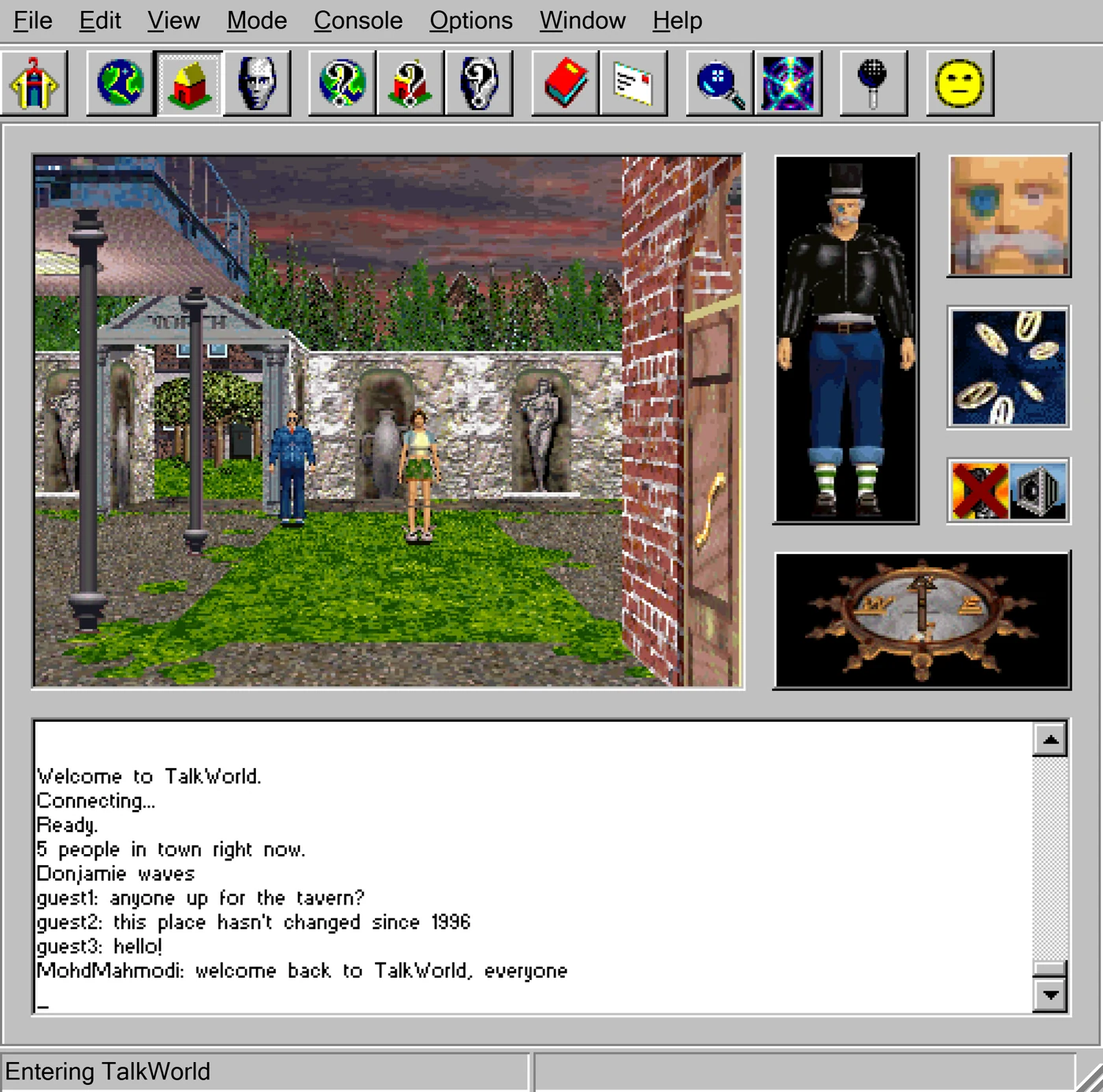
- Menu bar. Every command in the game. See Menus.
- Toolbar. Shortcuts for the commands you use most. Hover over a button to see its name. See Toolbar buttons.
- 3D view. What your character sees. Hold the mouse button down in here to walk, and point at someone to see their name.
- Your character. How others see you. Click a body part to change it.
- Your face. Click it to switch between happy, normal and sad.
- Activity light. The ones and zeros spin while updates arrive from the server. If it stops, your connection may have dropped.
- Microphone and speaker. Click the microphone to switch between push to talk and automatic recording. Click the speaker to turn sound off or on. A red X means that one is off.
- Compass. The needle shows which way you're facing.
- Chat box. Messages from other players appear here, and you type your own at the bottom.
- Status bar. Shows how many other players are nearby, who is talking by voice, and what the game is doing.
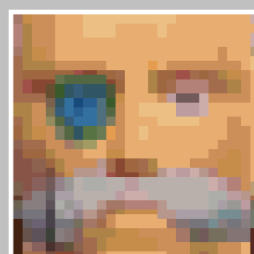

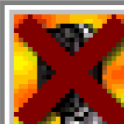
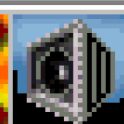
Right-click almost anything to get a short menu of things you can do with it: a player, your face, the microphone, the speaker or the chat box. On a touch screen, press and hold instead.
Moving around
| Control | What it does |
|---|---|
| ↑ ↓ | Walk forwards and backwards. |
| ← → | Turn left and right. |
| Shift | Hold it while walking to run. |
| Ctrl + ← → | Step sideways instead of turning. |
| Left mouse button | Hold it down in the 3D view to walk towards the pointer. The further the pointer is from the middle, the faster you go. |
| Right mouse button | Opens a menu for whatever is under the pointer. |
| Esc | Asks whether you want to quit. |
| Alt + letter | Opens a menu, for example Alt + V for View. |
The arrow keys always move you, even while you're typing a message. To go into a building, walk into its door. Doors open as you get close and shut behind you.
Chatting
Just start typing. Your words appear at the bottom of the chat box. Press Enter to send. Who hears you depends on the talk mode, which you pick with three toolbar buttons or the Mode menu.
| Mode | Who hears you |
|---|---|
 Talk Talk | Everyone in your area, such as the Town Square or the Tavern. This is the normal mode. |
 Shout Shout | Everyone in the room, wherever they are in town. Handy when it's quiet, annoying when it's busy. |
 Whisper Whisper | Only the people you pick. Click the button, then click a player in the 3D view. Click Talk or Shout to stop whispering. |
Shortcuts you can type
| Type | Result |
|---|---|
!hello | Shouts "hello" to everyone, whatever mode you're in. |
'hello | Says "hello" to your area, even if you're in Shout or Whisper mode. |
>Ana see you later | Tells only Ana "see you later". |
@waves | An emote. Everyone nearby sees "YourName waves". |
Emotes
Right-click a player and choose Emote for a list of actions, such as Hug, Bow to, Laugh, Shrug, Glare and Comfort. Some are done to the other person ("Ana hugs Leo") and some on your own ("Ana laughs").
The chat box
Scroll up to read older messages. Right-click the chat box to Clear it, Save History to a text file, or change the font. The Console menu has the same commands.
Voice chat
You need a microphone and speakers or headphones. Your voice goes to the same people your typing would, so the talk mode works for voice too. Windows and browser players can hear each other.
Push to talk
Hold down the Record button on the toolbar  , say what you want to say, then let go. On a phone, hold the red TALK button. The microphone panel animates while your voice is being sent.
Automatic recording
If you'd rather not hold a button, click the microphone panel next to your face, or tick Automatic Recording in Sound Options. The game then starts sending whenever you speak louder than the recording threshold, and stops when you go quiet. The red X on the microphone panel means you're in push to talk mode.
Sound Options
Open Options, Sound... to set things up. While this window is open, you hear your own voice played back, so you can test your microphone. Nobody else hears it.

- Recording Threshold
- How loud you have to be before automatic recording starts. Raise it if background noise keeps setting it off. It only applies with Automatic Recording ticked.
- Microphone Input
- A live meter of how loud your microphone is. It turns red when you're above the threshold.
- Sensitivity
- Boosts or lowers your microphone. Turn it down if people can hear you breathing, up if you're too quiet.
- Sound Effects Volume and Speech Volume
- How loud the game's sounds and other people's voices are.
- Speech Playback
- How much incoming speech is saved up before it plays. Keep it near Real-Time for quick replies. Move it up towards Fully Buffered if voices sound choppy.
- Enable Sound Output
- Untick it to mute the game completely.
Finding people
The town is big enough that you won't always see people straight away. These lists help.

 World who lists everyone in your room.
  Area who lists only the people in your area. Pick a name, then:
- Teleport To
- Jump straight to that person.
- Mail To
- Write them a message they'll get next time they log in.
- View Description
- Read what they've written about themselves.
- Ignore
- Stop seeing and hearing them. Click again to undo it.
- Ping
- Check how fast their connection is.
- Whisper To
- Talk privately to just that person.
- Add To Whisper List
- Include them in a private group of up to four people.
- Update
- Refresh the list.
 The Whisper list shows who's in your private group, with Remove From List to take someone out. On a phone, the PEOPLE button opens Players in world.
Your character

Click the  Character Editor button, or choose Edit, Character....
- Use the up and down arrows next to Head, Body, Legs and Feet to flick through the outfits.
- Pick Male or Female under Gender.
- Randomize picks a random outfit.
- The Login box on the right holds your name and password if you have a registered name.
- With a registered name your look is saved on the server, so it follows you between the browser and the Windows app.
- Click OK to save. Everyone sees your new look straight away.
You can also click parts of the character panel in the main window to change them, and click your face to change your mood. The smiley  on the toolbar does the same.
Your description
Choose Edit, Description... to write a few lines about yourself. Other players see it when they choose View Description on your name.
Message boards and mail
Message boards
Most big buildings have a message board, each with its own topics. The Tavern has General Chat, Jokes and Food and Drink, for example. Walk into a building and click the red book  . If the area you're in has no board, the game tells you and suggests teleporting to one.

- Click a topic to open it. A closed book means it has messages you haven't read.
- Post writes a new message in the selected topic. Reply answers the selected message on the board, and Reply by Email answers it privately.
- Next Unread jumps to the next message you haven't read. Mark all Read clears them all.
- Show Read hides or shows messages you've already read. Thread groups replies under the message they answer.
Registered players have a mailbox on the server. Click the envelope  to open your Inbox. It works like the message boards: Send Mail writes a new message, Reply answers one, and Delete removes it. Mail waits on the server until the other person logs in. When you have new mail, a box pops up and offers to open your mailbox.
Map and teleports

Click the magnifying glass  to swap the 3D view for a map of the whole town. You can still walk with the arrow keys and watch your marker move. Click the button again to go back.
Click the star  for the teleport list:
- Themed Rooms: the Town Square, the Museum, the Town Hall, the Science Centre, the Tavern, the Sports Centre, the Church and the Cinema, plus places the 1996 game hid from this list: the Maze, the Smaller Church, the Small House, the Small Building, the L Shaped Building, the Bizarre Building and four cabins.
- Discussion Rooms: the Drawing Room, the International Room, the Study and the Lounge, plus eleven rooms that were built into the town but never opened: the Reading Room, the Trophy Room, the Conservatory, the Gun Room, the Snug, the Wine Cellar, the Gallery, the Long Room, the Map Room, the Notice Room and the Parlour. You can only get to these by teleport, and anyone can add topics to their message boards.
- User Locations: your own bookmarks. Stand somewhere you like, click Add Location and give it a name. Delete Location removes it.
Pick a place and click Teleport To. You can also type *goto The Tavern, or teleport to a person from the player lists.
Private rooms
A private room is a separate copy of the whole town. People in other rooms can't see or hear you, and you can't see or hear them. Everyone starts in Main, the public town.
- Make a room. In the launcher, click Create Room.... In the game, type
*room create name password. The password is optional. - Tell your friends the room name and the password.
- They join by picking it in the launcher's room list, or by typing
*room join name password.
Rooms with a ★ are official rooms: towns the server's admins have picked, always listed under Main even when nobody is in them.
Type *room list to see every room and *room leave to go back to Main. If you made the room, you can also remove or mute people in it, change its password or close it. See Chat commands.
High quality graphics
Open the View menu and pick High quality graphics for a sharper, smoother town: every texture redrawn at four times the detail, drawn by your graphics card at your screen's full resolution. Pick it again to go back to the original 1996 look. Your choice is remembered.
High quality graphics also draws the chat box text with modern fonts shaped like the game's three originals (a plain one, one with serifs and a narrow bold one), at your screen's full resolution, so it stays sharp at any window size. Lines still wrap exactly where they did in 1996.
Build your own town
The Map Editor lets you build your own TalkWorld: a village, a castle, a maze, an ice house, anything you like. Open it from the Map Editor link in the browser launcher, or the Map Editor... button in the Windows launcher.
Switch views at the top: Map is a flat plan, 3D lets you build while you look around (right-drag turns, the wheel zooms, WASD moves), Fly swoops through your world, and Walk shows exactly what the game will look like.
- Drop in ready-made pieces. Stamps has a cottage, a Tudor house, a house with stairs, an ice house, a pub, a church, a cinema, a forest, a pond, a town square, a garden, a hedge maze and a bandstand. Click to place, press R to turn. Everything stays editable.
- Put up buildings. Pick a style (or make your own from any pictures) and drag a box with Build. You get walls, a floor, a ceiling and a door. Door adds more ways in, Wall draws fences, hedges and inside walls.
- Lay the ground. Floor paints paths, water and floors. Shift-click fills a whole room.
- Go upstairs. Stairs (U) puts a flight of steps up to the next floor. Press R to turn them, then switch to Upstairs (Page Up) and build the room up there. Players in the browser can walk up and down them, and furniture can go on any floor.
- Furnish it. Object places trees, tables, lamps and the rest; you can drag a picture straight onto the map. Its Brush paints whole forests in one go.
- Fix mistakes. Erase removes whatever turns red. Right-click removes in every tool, and Ctrl+Z undoes. Select moves, copies and turns any part of the map, and can save it as your own stamp.
- Name the places. Areas paints named areas and sounds. Names show in the game, area chat stays inside an area, and an area can have a message board.
- Publish it. Click Publish and sign in with your registered name. Then make a room with it and tell your friends the room name.
The editor knows if you're signed in to the launcher and shows your name next to Publish. If you aren't, Sign in and Register are right there; registering is free and takes a few seconds.
Your own pictures: server admins can add textures and objects for everyone under File, Custom pictures. Give it a name, choose Texture (square, seamless) or Object (with a see-through background), pick the file and press Upload. It appears under ★ Custom in every picker.
Sky and look: the Sky button picks the sky for your map: one of the six 1996 skies, a clear day, a starry night, overcast, snowfall, a thunderstorm, any sky an admin adds, or Random like the original. Original | High quality switches how the editor shows it.
Town map: the Town map view shows the map players see in map mode, drawn in the 1996 style with roofs, trees and name plaques. Drag a name to move it, double-click it to rename or hide it.
Help in the editor lists every key. It works on phones and tablets too: one finger builds, two fingers move, pinch and turn the view.
Anyone can make a room with a published map: pick it under Map in Create Room..., or type *room create name password map:Map Name. Type *maps to see them all. Your map saves itself in your browser as you work, and Open starts from a copy of any published map or of the original town.
Maps are the same text files the 1996 game uses (map.txt, map2.txt, map3.txt, areas.txt, sprites.txt and sndmap.txt). File, Edit the text files edits them directly, and Import and Export load and save them as a zip.
Rooms with a custom map open in the new game window or the browser. The original 1996 game window can only show the original town.
Names and passwords
Guests get a temporary name like guest3 each time they join. If you want the same name every time, register it. It's free.
- In the launcher: click Register a new name..., choose a name and a password, then sign in with Use my registered name.
- In the game: type
*register name password. - To change your password: type
*password newpasswordwhile signed in.
Names are 2 to 20 letters, numbers, dashes or underscores, and must start with a letter. Passwords are 4 to 13 characters with no spaces. A registered name also gets you a mailbox and a description.
Phones and tablets

On a phone, the screen is split into the 3D view, a strip with your face, activity, microphone, speaker and compass, the chat box, and a touch pad at the bottom.
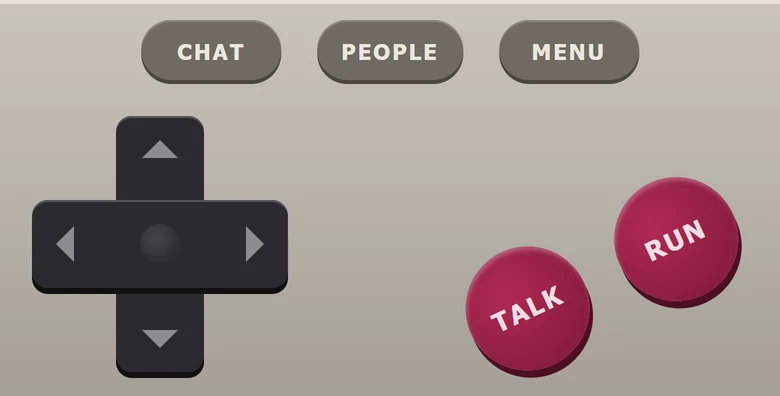
- Direction pad
- Walk and turn. Slide your thumb to change direction.
- RUN
- Hold it while walking to run.
- TALK
- Hold it and speak, then let go to send your voice.
- CHAT
- Opens the keyboard so you can type. You can also tap the box that says "Say something...".
- PEOPLE
- Opens the list of everyone in your room, where you can teleport to them.
- MENU
- Shows or hides the game's menus.
- Press and hold
- Works like a right-click. Hold on a player, your face or the chat box for its menu.
Turn your phone sideways for a bigger 3D view.
Toolbar buttons

| Button | What it does |
|---|---|
| Character Editor | Change your look, name and password. More |
| Shout to world | Everyone in the room hears what you type or say. |
| Talk to area | Only people in your area hear you. The normal mode. |
| Whisper to player | Click a player in the 3D view to talk only to them. |
| World who | List everyone in your room. More |
| Area who | List the people in your area. |
| Whisper list | See and edit your private group. |
| Message board | Read and post on this building's board. More |
| Email | Open your Inbox. |
| Map | Show or hide the town map. More |
| Teleport | Open the teleport list. |
| Record | Hold it down to talk with your voice. More |
| Expression | Pick a happy, normal or sad face. |
Menus

File

- Exit
- Leave TalkWorld.
Edit

- Character...
- Open the character editor.
- Description...
- Write a few lines about yourself.
View

- Players in World, Players in Area, Whisper List
- The player lists.
- Map
- Show or hide the town map.
- Teleport List
- Places you can jump to.
- Standard, Big view, 1996 classic layout
- How the window is arranged. Standard has the chat under the view. Big view gives the 3D view the whole left side and puts the chat on the right under the compass. 1996 classic is the original window. It switches straight away, without reconnecting.
Mode

- Shout, Talk, Whisper
- Choose who hears you. The dot marks the current mode.
Console

- Save History...
- Save everything in the chat box to a text file. Scroll the chat box with the mouse wheel or its scroll bar.
- Clear History
- Empty the chat box.

Window

- Message Board
- Open this building's board.
- Open your Inbox.
Help

- Contents
- Opens this guide.
- TalkWorld Web Page
- Opens talkworld.org.
- Pricing
- A reminder that TalkWorld is free.
- Contact Us
- How to reach the people who run TalkWorld.
- About TalkWorld...
- The game's version, who brought it back, and a link to the About page.
The Windows version keeps the original 1996 Help menu.
Admins see an extra Admin menu for moderating the town.
Chat commands
Type these in the chat box and press Enter. They all start with a star. Type *help in the game for the same list, with the command names in red like the original.
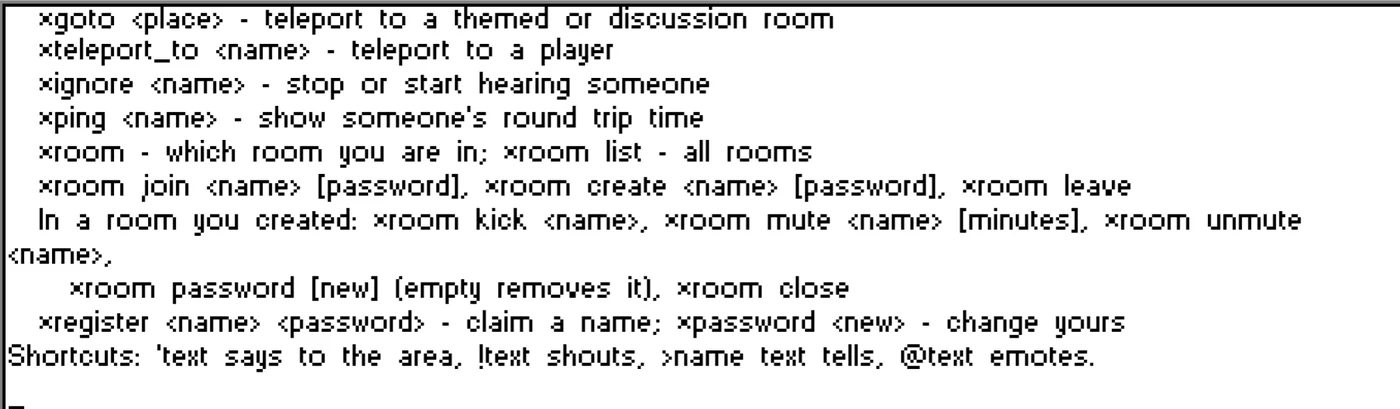
*help. The game's font draws the star a little like an x.| Command | What it does |
|---|---|
*help | Lists the commands. |
*who | Lists everyone in your room. |
*goto place | Teleports you to a themed or discussion room, such as *goto The Tavern. |
*teleport_to name | Teleports you to a player. |
*ignore name | Stops or restarts hearing someone. |
*ping name | Shows how long a message takes to reach someone and come back. |
*emote text | Acts something out, the same as typing @text. |
*notify off | Stops the "has logged on" and "has logged off" messages. *notify on brings them back. |
*speech off | Turns all voice chat off. *speech on turns it back on. |
*restrict on | Turns off voice chat sent to the area or the world, so you only hear people who whisper to you. *restrict off undoes it. |
*echo on | Plays your own voice back to you, to check your microphone. *echo off stops it. |
*status | Shows the server's name, how many people are online, how many rooms are open and how long it has been up. |
*date | Shows the date and time (UTC). |
*quit | Logs you off. |
*room | Tells you which room you're in. |
*room list | Lists every room. |
*room create name password | Makes a private room. The password is optional. |
*room join name password | Joins a room. |
*room leave | Takes you back to Main. |
*room kick name | Removes someone from a room you made. |
*room mute name minutes | Mutes someone in a room you made. *room unmute name undoes it. |
*room password new | Changes your room's password. Leave it blank to remove the password. |
*room close | Closes a room you made. |
*register name password | Claims a name for yourself. |
*passwd new | Changes your password. *password new works too. |
*set_email address | Saves an email address with your registered name. Only the server's admins can see it, so they can help if you lose your password. |
Settings
Open Options, Program... for these:
- Console colours change the colour of the chat box and its text. The example text shows what you'll get.
- Scroll to new text jumps the chat box down to new messages, even if you've scrolled up.
- Draw distance sets how far you can see. Lower it if the game runs slowly.
- Semi-transparency lets you see through windows. Turning it off can also speed things up.
Your settings are saved automatically. On Windows they're kept in the game folder. In a browser they're kept in that browser.
Troubleshooting
Windows or Chrome won't let me run the installer
TalkWorld Setup is new and isn't code-signed yet, so Windows and Chrome are cautious about it. In Chrome, open the downloads list (the arrow at the top right) and choose Keep. When Windows shows "Windows protected your PC", click More info, then Run anyway. If you'd rather not, play in your browser instead.
I can't connect
Check Who's online to see if the server is up. Turn off any VPN or proxy, because the server blocks them to keep banned players out. On Windows, start the game from the TalkWorld shortcut, which opens the launcher. Running talkworld.exe on its own won't find the server.
Nobody can hear me
On Windows, open Settings, Privacy & security, Microphone and turn on Let desktop apps access your microphone. In a browser, allow the microphone when asked, or click the padlock next to the address and allow it there. Then open Options, Sound... and check that the Microphone Input meter moves when you talk. Remember to hold the Record button, or TALK on a phone, while you speak.
I can't hear anything
If the speaker panel has a red X, click it to turn sound back on. In Options, Sound..., make sure Enable Sound Output is ticked and the volume sliders aren't at the bottom. In a browser, click or tap the game once, because browsers only play sound after you've interacted with the page.
Voices sound choppy
Open Options, Sound... and move Speech Playback up a notch or two. Speech arrives a moment later but sounds smoother.
The game is slow or jerky
Lower the Draw distance and turn off Semi-transparency in Options, Program.... In a browser, close other busy tabs.
The game is too fast, or the 3D view is black, on Linux
Use the talkworld command from the Linux download, which sets Wine up correctly. If you run the portable zip by hand, start it with WINEDLLOVERRIDES="ddraw=n,b" wine "Play TalkWorld.exe" so Wine uses the bundled DDrawCompat.
I forgot my password
Ask an admin in town or contact the revival team through the links on the About page. They can set a new password for you.
How do I update or uninstall?
When an update is out, an Update button appears at the bottom of the launcher. To remove TalkWorld, open Settings, Apps, find TalkWorld and choose Uninstall.
Is TalkWorld free?
Yes. There are no ads, no payments and no subscriptions. In the Windows version, the Payment Web Page item in the Help menu is left over from the 1990s.